


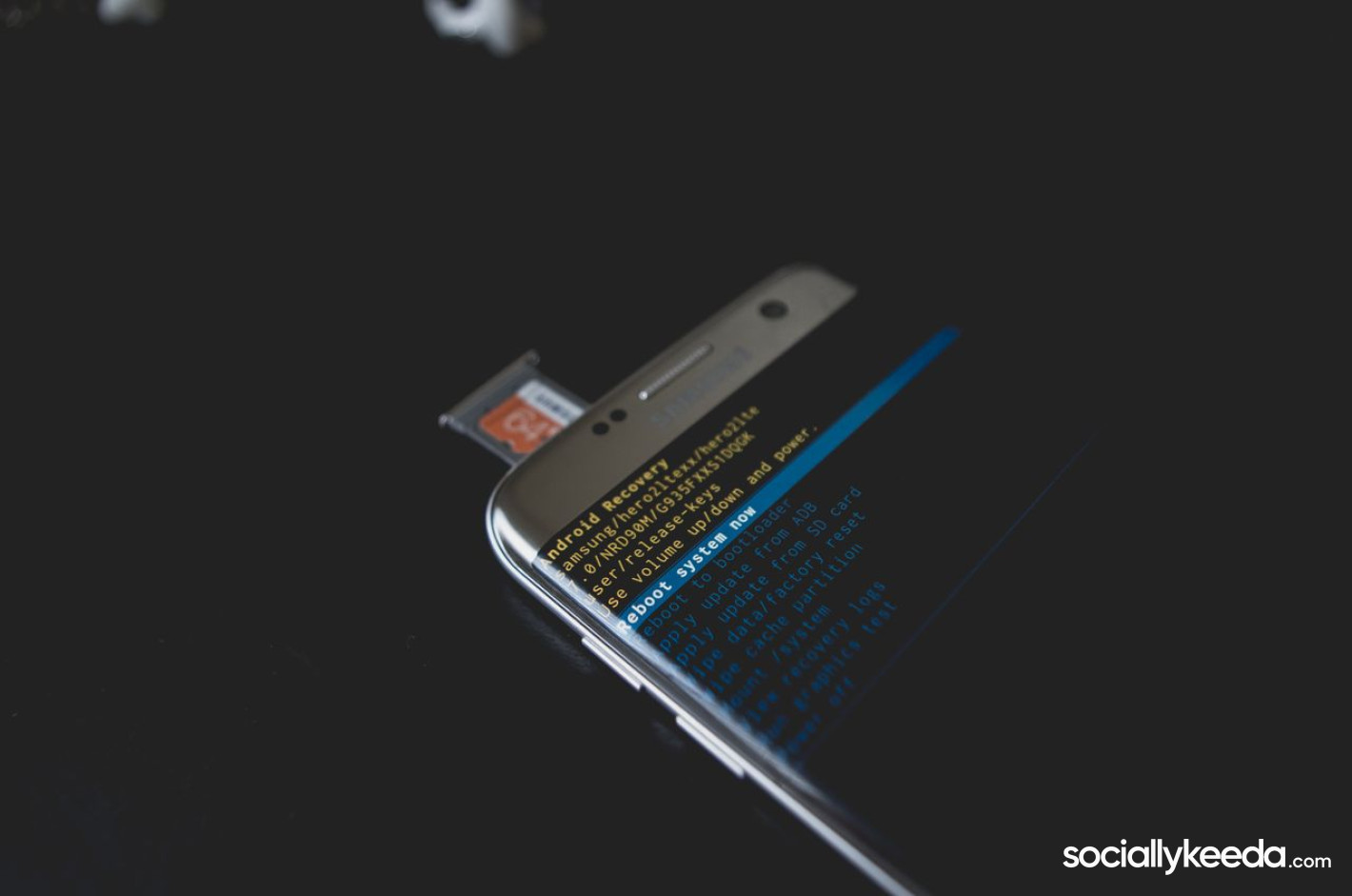
Quick Answer: In most cases, standard Fastboot commands such as fastboot erase frp cannot remove Factory Reset Protection (FRP) on modern Motorola phones. Whether a command works depends on the device, bootloader state, and manufacturer implementation. If you own the phone and cannot complete Google verification, start with official account recovery. If that fails, you can check whether a compatible desktop tool, such as Fonelora Android Unlocker, supports your specific device before proceeding.
Try Fonelora Android Unlocker if Your Device Is Supported
If official account recovery has not resolved the problem, a desktop tool may be another option for eligible devices. Fonelora Android Unlocker provides a graphical workflow for supported FRP-related operations, reducing the need to troubleshoot command-line instructions manually.
Before using it, confirm that your Motorola model, Android version, and security patch are supported. Third-party tools do not work universally, and a graphical interface does not guarantee that FRP can be removed from every locked device.
Read also: Business Broadband Solutions: Choosing Reliable Internet Connectivity for Enterprises
How to Use Fonelora Android Unlocker
-
Check device compatibility. Visit the official specifications page and verify support for your exact Motorola model and Android configuration.
-
Prepare your computer. Use a compatible Windows or Mac computer and a reliable, data-capable USB cable. Follow the software's current system requirements.
-
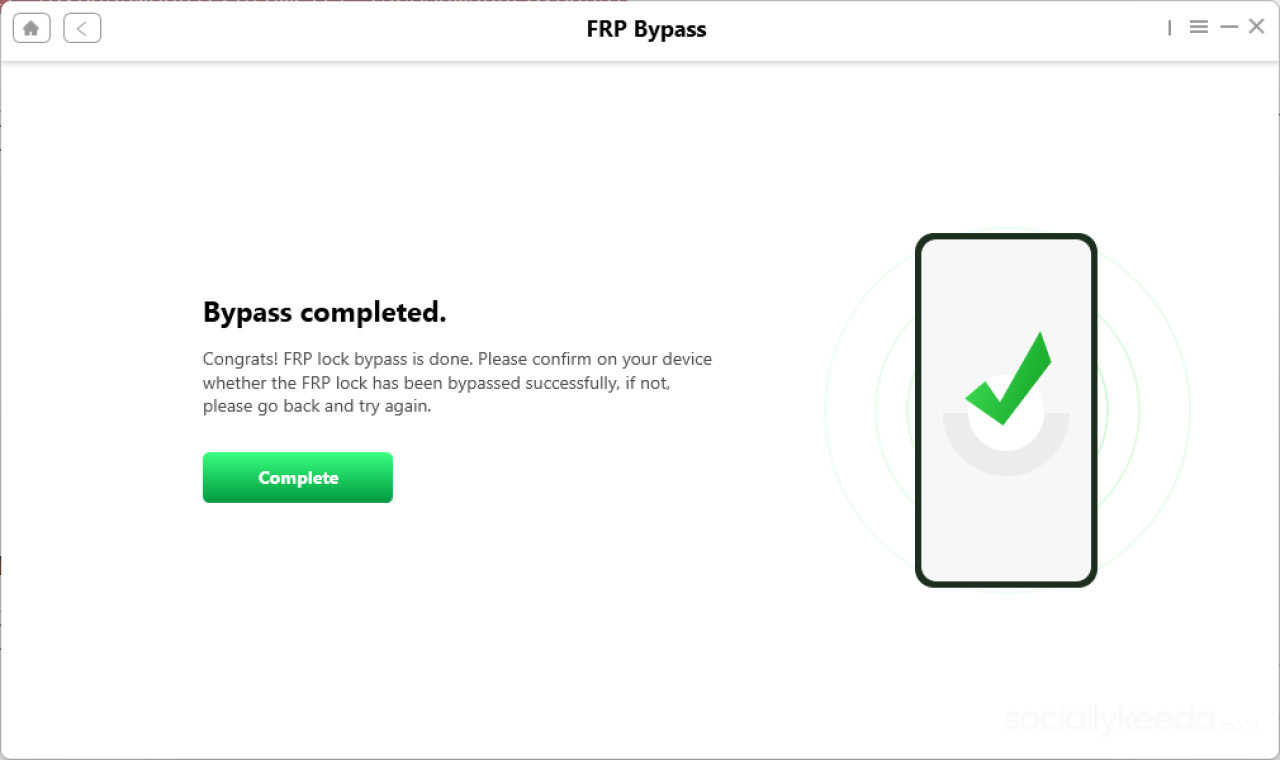
Launch the software. Open Fonelora Android Unlocker and look for the FRP Bypass feature.
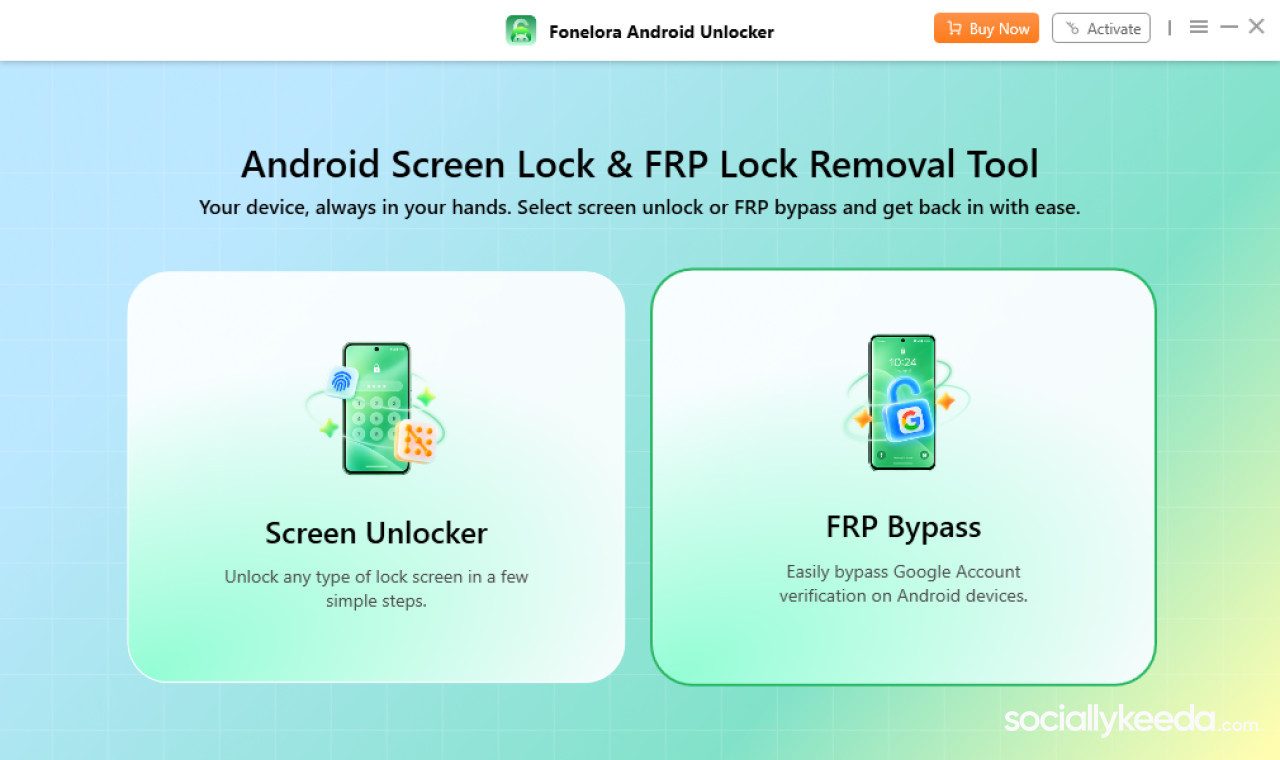
-
Connect your Motorola phone. Follow the software's on-screen instructions for connecting and identifying the device. Do not select unrelated operations or firmware options.
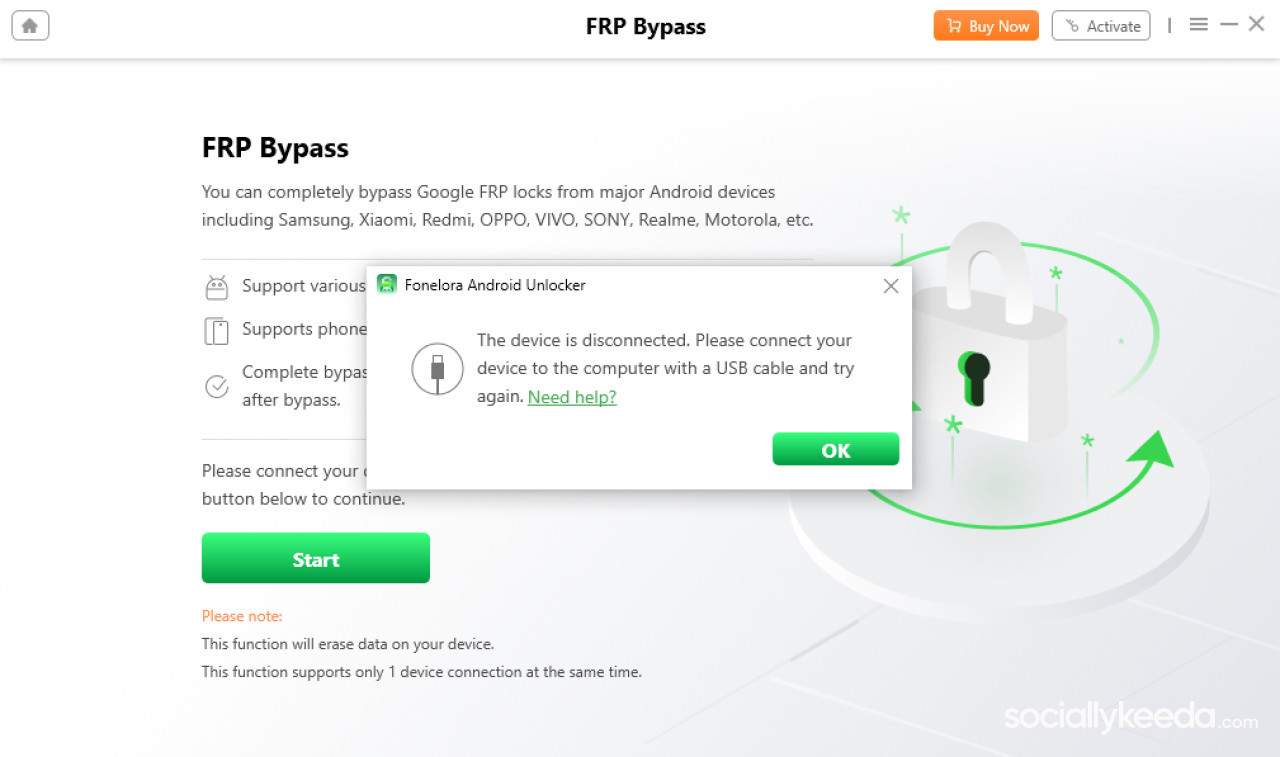
-
Follow the supported workflow. Complete only the steps displayed for your specific device. If the model or Android version is unsupported, stop rather than trying unrelated commands or unofficial workarounds.
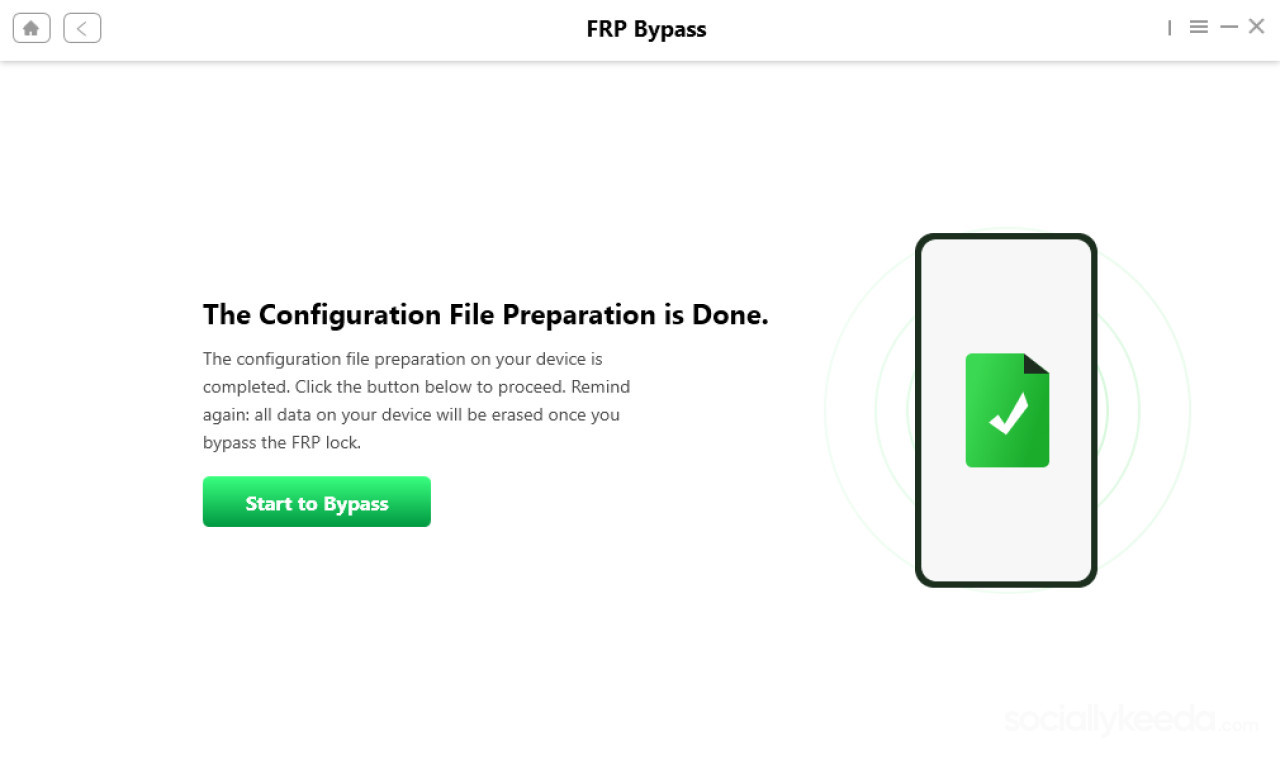
-
Complete device setup. If the supported process succeeds, follow the phone's setup instructions and use an account you own or are authorized to manage.
Important: Check the compatibility list before downloading or purchasing software. Results vary by model, Android version, and security patch, and no universal success rate should be assumed.
Why Do Fastboot FRP Commands Fail on Modern Motorola Phones?
Fastboot is a diagnostic and device-management interface, not a universal FRP removal mechanism. Commands such as fastboot erase frp may be rejected because the device does not expose the relevant operation, the bootloader is locked, or the manufacturer's security implementation restricts access.
Read also: How to Hide Location on iPhone Without Them Knowing
A locked bootloader commonly prevents unauthorized flashing or modification of protected partitions. However, unlocking the bootloader is not a universal solution to FRP, and some devices require manufacturer authorization or have additional restrictions. The bootloader status alone does not prove whether a particular FRP-related command is supported.
Older utilities, including MotoReaper, may also lack compatibility with newer devices and security updates. Be cautious of downloads that promise support for every Motorola model or claim guaranteed results. Unverified software can expose your computer and personal data to security risks.
Compare Your Recovery Options
| Method | Best for | Main limitation |
| Google Account Recovery | Users who forgot their account credentials | Recovery checks or security holds may delay access |
| Previous Owner Assistance | Second-hand phones still linked to another account | The previous owner must cooperate |
| Manual Fastboot Commands | Device-specific diagnostics and supported operations | Standard commands generally cannot remove FRP on modern locked devices |
| Fonelora Android Unlocker | Owners of devices listed as compatible | Support varies by model and software version |
For most users, official account recovery is the safest first step. A desktop tool is worth considering only after confirming compatibility and reviewing its requirements.
Read also: $2 Trillion Question: Can Anthropic Turn AI Growth Into Sustainable Profits?
Official Google Account Recovery
If you cannot remember the Google account previously synced with your Motorola phone, try these steps first:
-
Use Google Account Recovery to recover your username or password.
-
If you recently changed your password, follow Google's current security guidance and wait if a verification delay applies.
-
If the phone was purchased second-hand, contact the previous owner and ask them to follow Google's official process for removing their account from the device.
-
If you own the device but remain locked out, contact Motorola support with proof of purchase and ask about available assistance.
FRP is designed to help protect a device after an unauthorized reset. Use recovery methods only on devices you own or are explicitly authorized to manage.
Final Thoughts
Standard Fastboot commands are generally not a dependable FRP solution for modern Motorola phones. Start with Google Account Recovery or assistance from the previous owner. If those options fail, check whether Fonelora Android Unlocker supports your exact device before following its guided workflow.
Choose a recovery path based on verified compatibility, device ownership, and official guidance rather than promises of universal bypasses.






Comments
No comments yet — be the first to share your thoughts.