


Can You Hide Your Location on iPhone Without Them Knowing?
Quick Answer: Yes, you can hide your location on an iPhone, but there is no guaranteed way to prevent someone from noticing. Stopping location sharing in Find My usually does not send a separate push notification, although contacts may notice that your location has disappeared. Older iOS versions may also display a message about stopped sharing.
If you want to keep your iPhone connected while controlling the location shown to others, you have three main options:
-
Use a GPS location changer: Tools like Fonelora Location Changer let you set virtual GPS coordinates on compatible devices.
-
Switch to a second Apple device: Share your location from a supported iPhone or iPad that remains in one place.
-
Stop sharing through Find My: The simplest official privacy option, although others may notice that your location is unavailable.
The best choice depends on whether you want to stop sharing entirely or keep a location visible.
How to Hide Your iPhone Location Without Turning Off Your Phone
Method 1: Use Fonelora Location Changer to Set a Virtual Location
If you only have one iPhone and want to keep calls, messages, and internet access working, a GPS location changer is an option worth considering.
Fonelora Location Changer lets you choose virtual GPS coordinates using a Windows or Mac computer. Its Teleport Mode is designed to change the location reported to compatible location-based apps without requiring you to disable your phone's internet connection.
How to use Fonelora Location Changer:
-
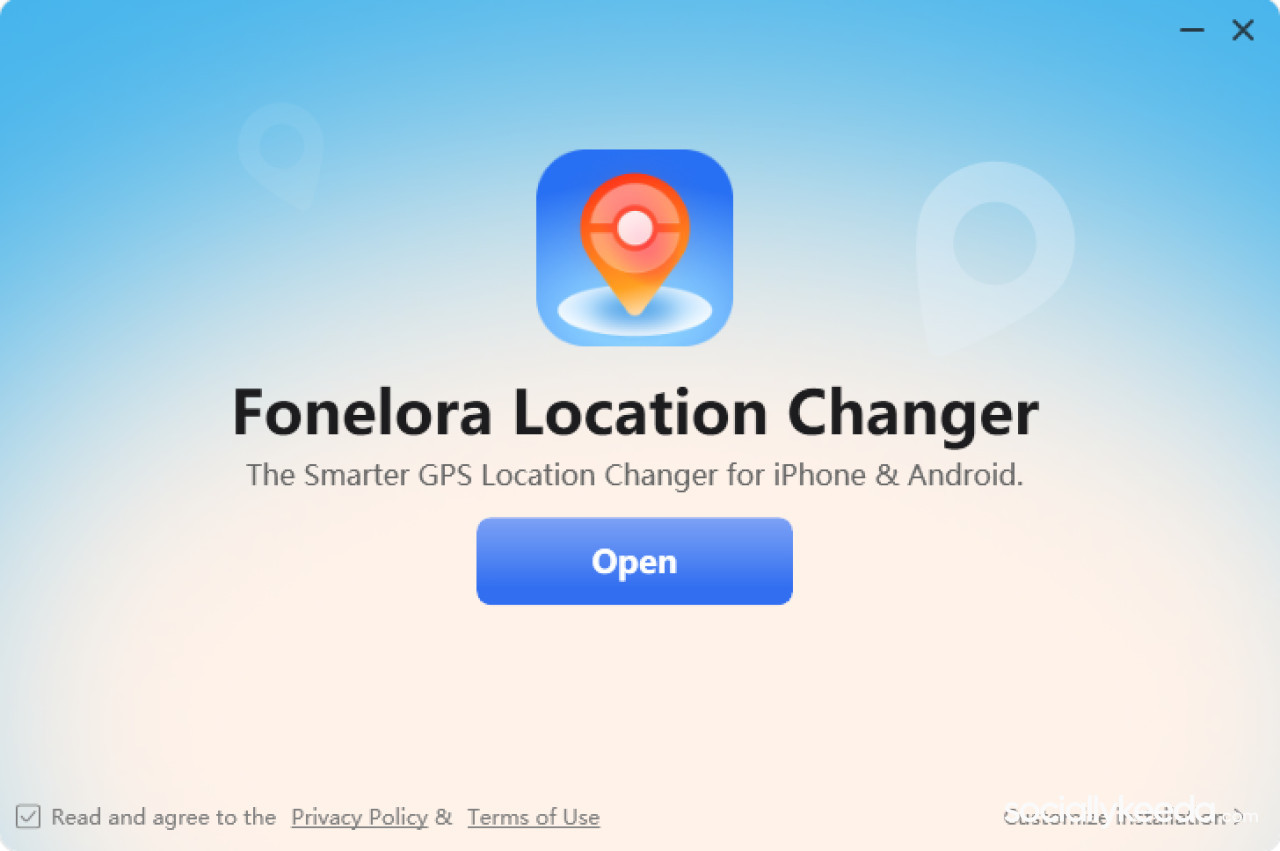
Download and launch Fonelora Location Changer on your Windows PC or Mac.
-
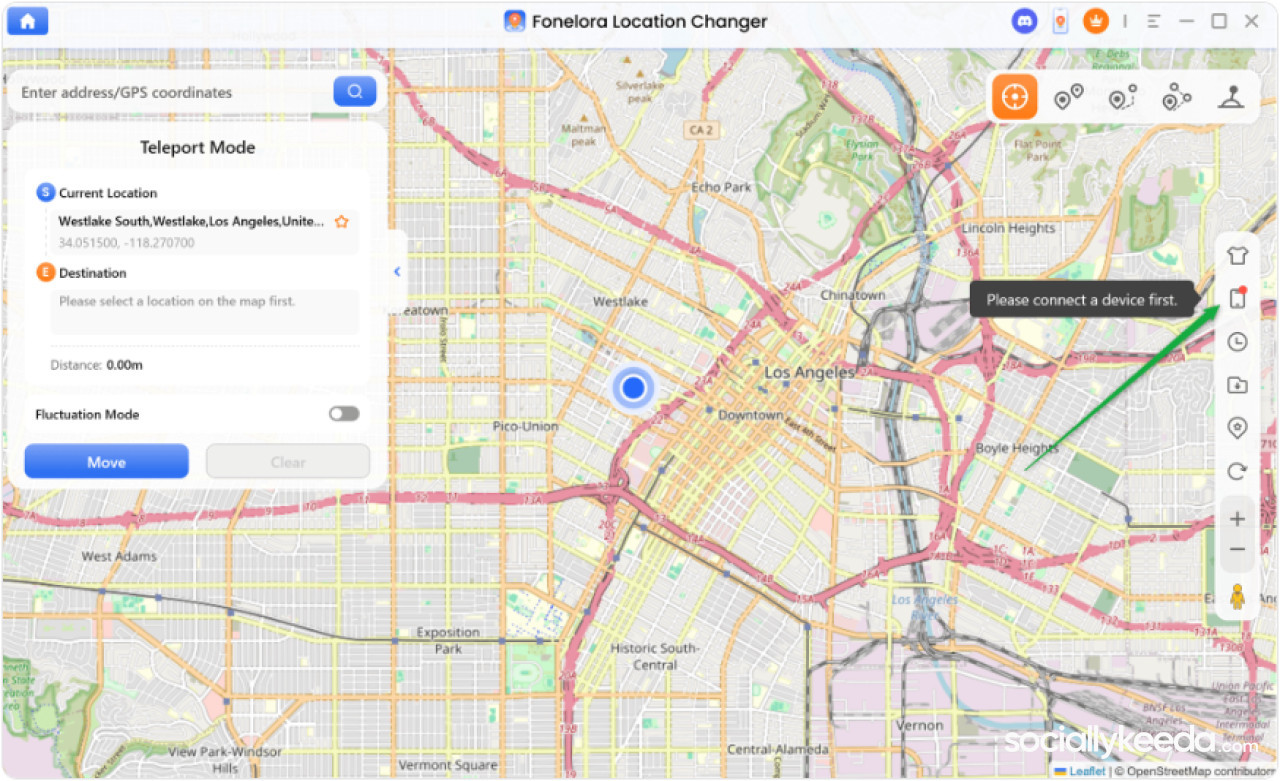
Choose the appropriate device mode and select Teleport Mode.
-
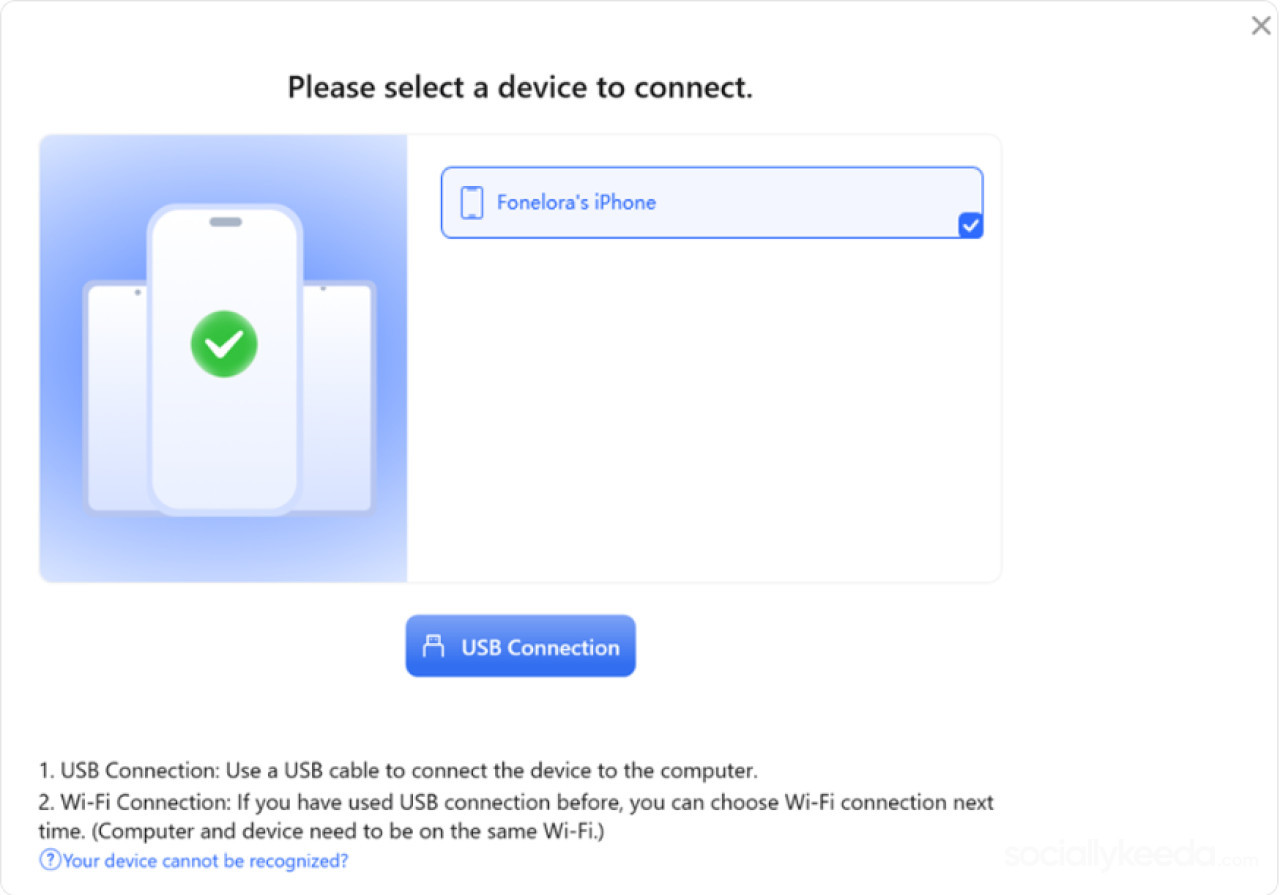
Connect your iPhone using a supported USB or Wi-Fi connection.
-
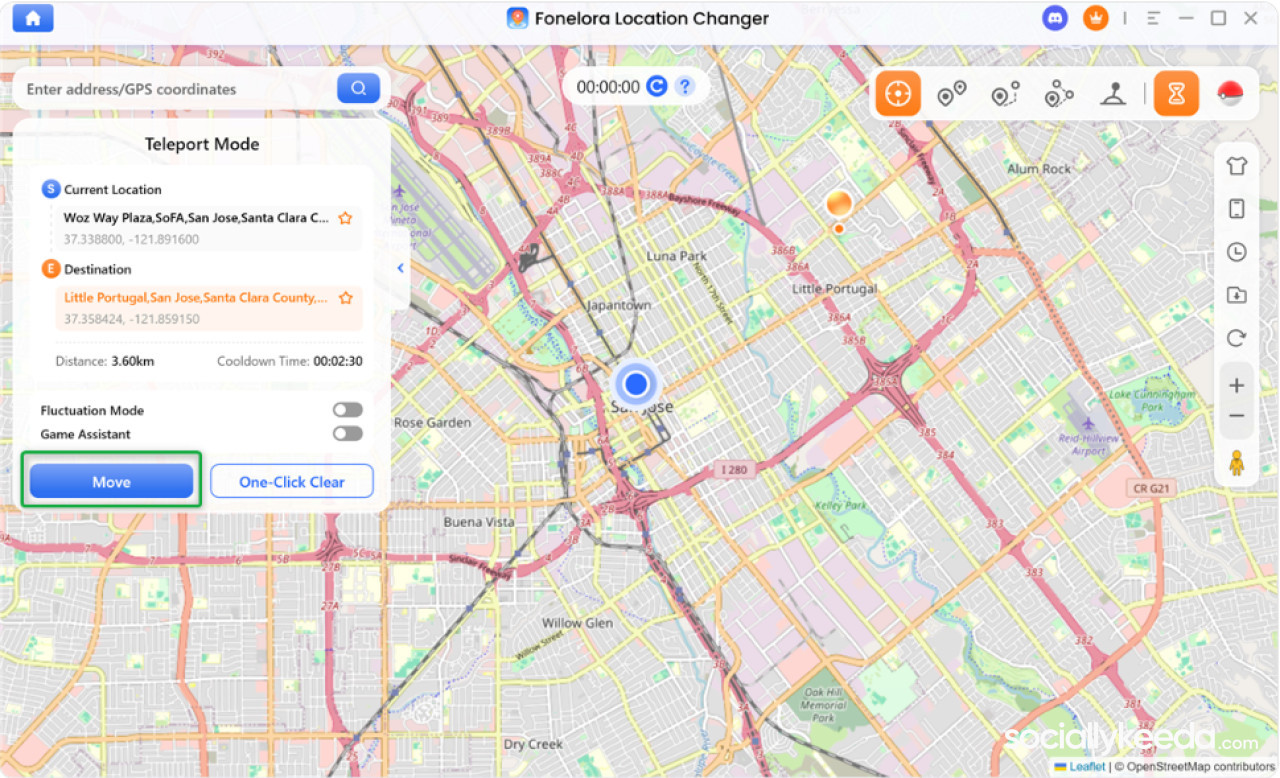
Search for the location you want to display.
-
Click Move to apply the virtual GPS coordinates.
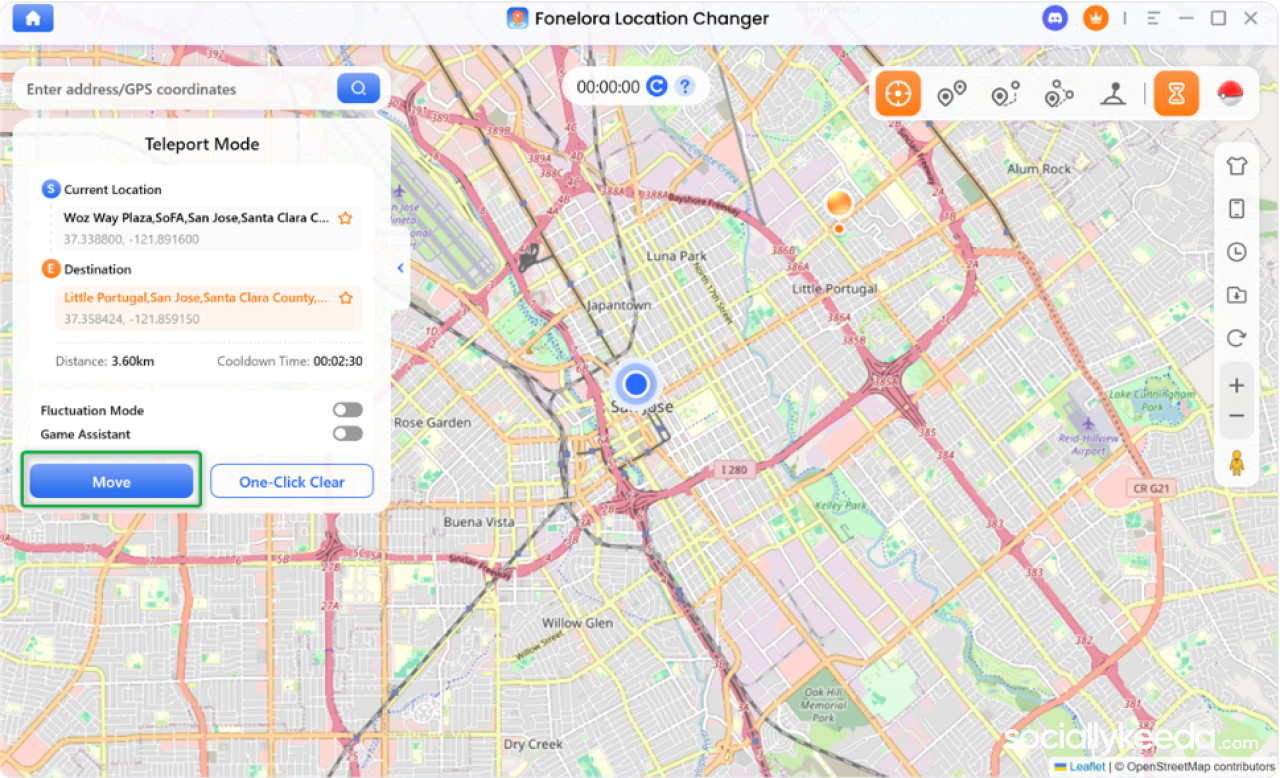
After applying the change, check the relevant app to see whether it recognizes the virtual location.
Prefer using your iPhone directly? Try Fonelora Go.
Read also: $2 Trillion Question: Can Anthropic Turn AI Growth Into Sustainable Profits?
Fonelora Go provides mobile location-changing controls after the required iPhone configuration. Once configured, open the app, select Teleport Mode, choose a destination, and tap Start Moving.
For the standard iOS location-changing workflow, Fonelora Go requires Wi-Fi or a mobile hotspot when applying a location change. Initial configuration may also require a computer.
Important: GPS modification affects more than Find My and may interfere with navigation or other location-dependent features. Results vary by iOS version, app compatibility, and device settings. Neither tool guarantees that another person cannot detect a location change.
Method 2: Use a Second Apple Device to Share a Stationary Location
If you have a spare compatible iPhone or iPad, Apple allows you to choose which device shares your location.
Here's how:
-
Sign in to the secondary device with the same Apple Account.
-
Connect it to Wi-Fi and keep it charged.
-
Open Find My on the secondary device.
-
Tap Me.
-
Select Use This [Device] as My Location, if available.
-
Leave the secondary device at the location you want to share.
Find My can then use that device as your location-sharing source instead of your primary iPhone.
This method does not require third-party GPS software. However, device eligibility, connectivity, and other Apple location-sharing features can affect the result. It also does not prevent someone from noticing that your location remains stationary.
Read also: Are You A Facebook, Insta, Or Twitter Addict? Recognize The Signs And Find Ways To Deal With It !!
Method 3: Stop Sharing Your Location Through Find My
If your goal is simply to protect your privacy, Apple's built-in controls are the most straightforward option.
To stop sharing with one person:
-
Open Find My.
-
Tap People.
-
Select the contact.
-
Tap Stop Sharing My Location.
To stop sharing more broadly, open Find My, tap Me, and turn off Share My Location.
You can also manage individual iPhone location permissions if you only want to restrict certain apps.
These settings do not create a fake location. They simply limit access to your location information.
What Will Others See When You Hide Your Location?
The visible result depends on the method, connectivity, and software version.
| Method | What Others May See | Internet Access |
| Fonelora Location Changer | Virtual coordinates in compatible apps | Remains available |
| Second Apple device | Location of the selected sharing device | Remains available |
| Stop sharing in Find My | Your location disappears or becomes unavailable | Normal |
| Turn off Location Services | Location updates may become unavailable | Normal |
| Airplane Mode | Last known or unavailable location, depending on connectivity | Wi-Fi may be re-enabled |
Turning off location sharing does not always display the exact message "Location Not Available." If you encounter that status, read what No Location Found means on iPhone to understand the difference between sharing restrictions and location-update problems.
Does Turning Off Location Notify the Other Person?
Usually, stopping location sharing does not generate a separate push alert. However, Apple warns that people may notice sharing has stopped, and older operating systems may show a notification in Messages.
Read also: How To Compare Image Models Inside An AI API
This means no immediate push notification does not equal complete invisibility.
If someone regularly checks Find My, they may notice that your location is missing, outdated, or no longer updating.
Which Method Is Best for Hiding Your iPhone Location?
If you want straightforward privacy control, stopping location sharing in Find My is the simplest official solution.
If you have a compatible spare Apple device, switching your location-sharing source offers another native option.
If you want to explore virtual GPS coordinates while keeping your primary iPhone connected, Fonelora Location Changer provides a desktop workflow, while Fonelora Go offers mobile controls after initial configuration.
Choose the method based on your devices, privacy needs, and app compatibility rather than assuming any solution is completely undetectable.






Comments
No comments yet — be the first to share your thoughts.