
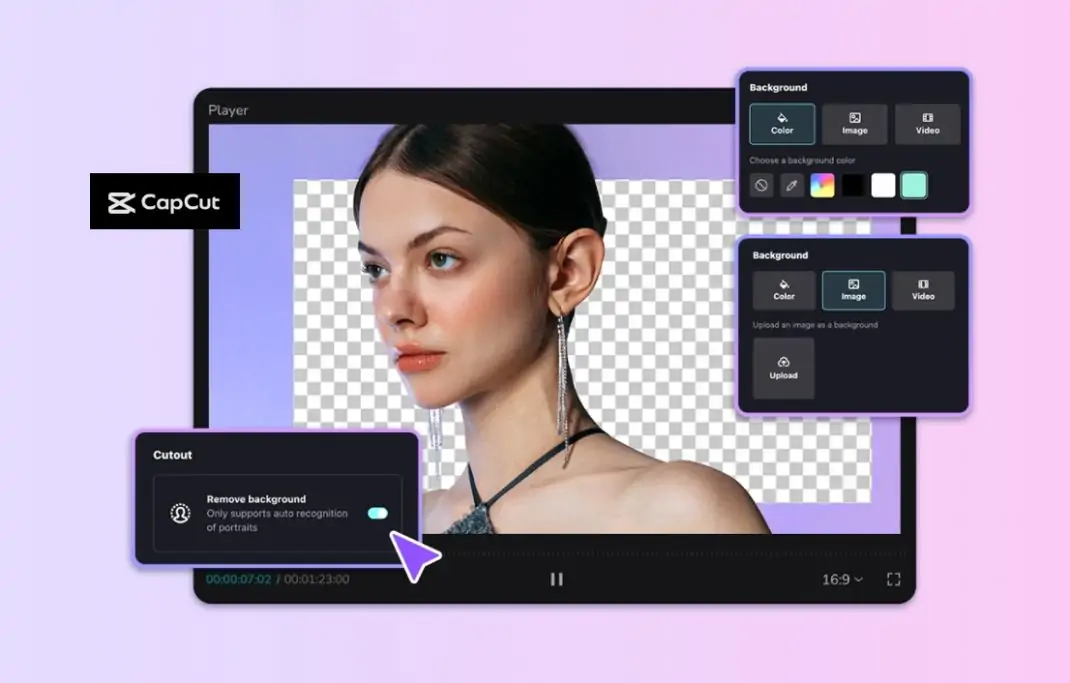
Designers are always searching for tools that save time, simplify workflows, and enhance creativity — and CapCut PC delivers on all three fronts. One of its most impressive features, the Background Remover, is quickly becoming a favorite among creative professionals. Whether you’re designing thumbnails, digital ads, social media visuals, or brand videos, this feature can completely transform how you work. With just a few clicks, CapCut PC’s Background Remover allows you to isolate your subjects from any backdrop—no tedious manual cutting or layering required. In the world of design, background removal is often a frustrating task. Traditional methods require detailed masking, layer adjustments, or switching between multiple tools. But CapCut PC has simplified this process using background removal, making it fast, accurate, and effortless. This means designers can now spend more time creating and less time cleaning up their visuals.
Why the CapCut Background Remover Is a Must-Have for Designers
CapCut PC’s Background Remover is not just another editing feature—it’s a professional-grade tool that blends artificial intelligence with design flexibility. Here’s why every designer should try it:
-
Save Hours of Manual Work
Removing a background manually, especially from a complex image or video, can take hours. Designers often switch between software like Photoshop or After Effects to fine-tune edges or clean up tiny details. CapCut PC eliminates that hassle. The Auto Removal option uses AI to detect the subject instantly, providing a clean separation without any extra steps. In seconds, your design assets are ready for overlays, thumbnails, or motion graphics.
-
Achieve Professional-Level Precision
The Background Remover doesn’t just guess—it understands context. It intelligently identifies people, objects, and outlines with remarkable precision. Designers working with portraits, product shots, or motion clips will notice how sharp and natural the results look. This precision allows your subject to remain crisp even when layered over vibrant or complex backgrounds. You can create amazing AI images by using the AI Image Generator tool.
-
Seamless Integration with Your Design Workflow
CapCut PC is more than just a video editor—it’s a versatile design platform. Once the background is removed, you can easily combine the subject with other visuals, add motion effects, or create composite designs. For example, a designer can take a product video, remove the background, and then place it against a branded gradient or animation. It’s perfect for social media promos, e-commerce banners, and digital storytelling.
How to Remove the Video’s Background
If you’re ready to experience the magic yourself, here’s a simple step-by-step guide to removing a background using CapCut PC.
Step 1: Upload Your Video
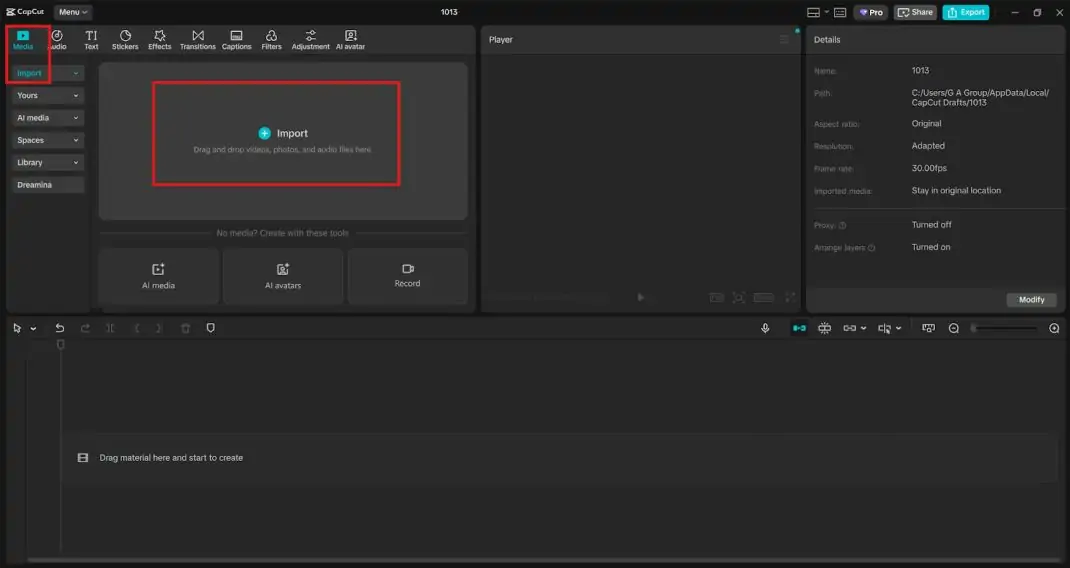
Start by opening the CapCut desktop video editor on your computer. Click “Create project” to begin a new edit. Then, select “Import” to add your chosen video to the media library and get it ready for editing. Drag and drop your clip onto the timeline to start editing. CapCut supports various file types, so you can easily work with footage from cameras, smartphones, or screen recordings.
Step 2: Use Auto Removal
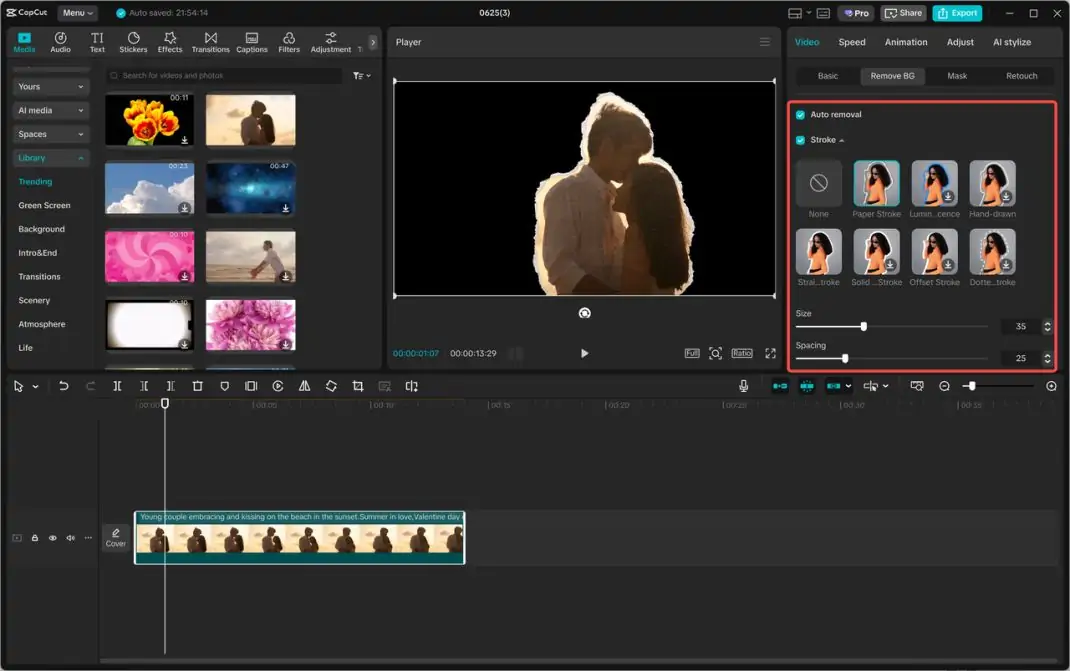
On the right-hand side panel, navigate to “Video” → “Remove BG.” Choose “Auto removal” to let CapCut automatically erase the background from your clip. CapCut’s advanced AI quickly identifies the main subject—be it a person, item, or product—and precisely outlines it for a clean, seamless cutout. For extra emphasis, you can turn on the “Stroke” option to add a border around your subject, helping it pop against any new background you choose. This is especially helpful for promotional content, ads, or social posts where clarity is key. This tool is incredibly fast, providing a smooth editing experience without lag or complex settings. You’ll notice how easily CapCut handles background removal—even for dynamic or fast-moving subjects. Use the CapCut Text to Speech AI feature to add narration to your clip. It will engage your audience.
Step 3: Export and Share
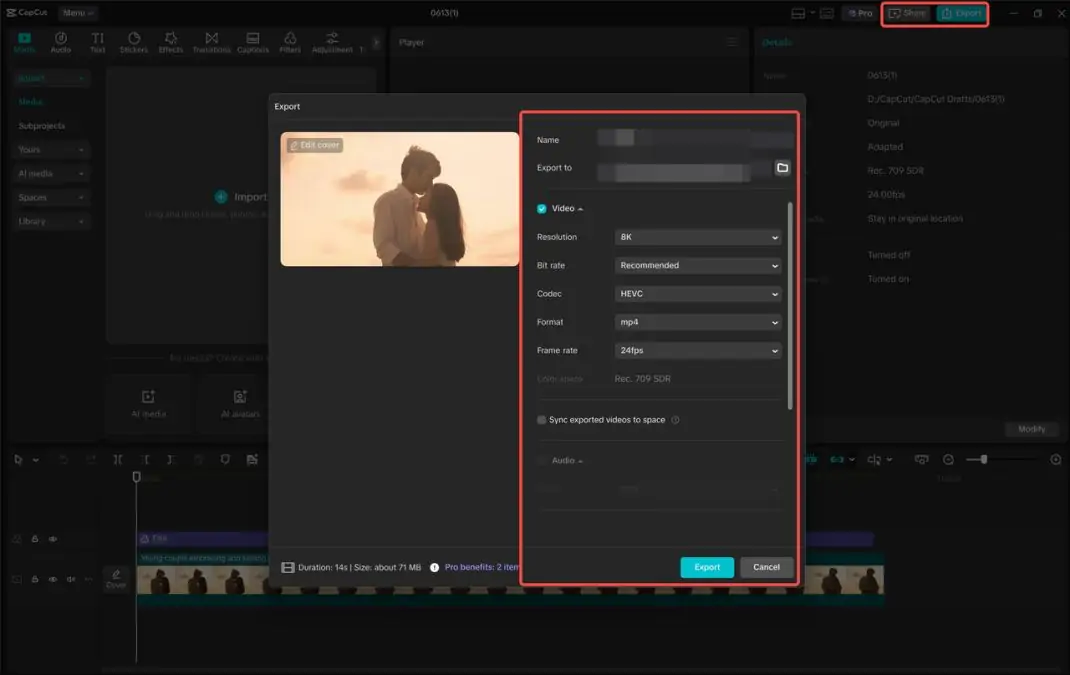
When your video is ready, click the “Export” button in the top-right corner. Here, you can fine-tune settings such as quality, frame rate, and resolution to match your project requirements. Once satisfied, select “Export” to save the finished video to your computer. CapCut also offers direct sharing options for platforms like YouTube, TikTok, and Instagram, making it easy to publish your design or client project instantly.
Creative Ways Designers Can Use the Background Remover
The possibilities with CapCut PC’s Background Remover are endless. Here are a few creative ways designers can use this feature:
-
Product and Brand Showcases
If you’re designing visuals for e-commerce or branding, clean product cutouts are essential. The Background Remover can help you isolate products, overlay them on themed backgrounds, and create professional ad visuals in minutes.
-
Marketing and Social Media Graphics
Designers managing social media campaigns can use background-free footage to add dynamic layers, branded animations, or stylized motion backgrounds. CapCut’s templates and text tools make it easy to match brand colors and messaging.
-
Digital Portfolios and Motion Design
Want to give your portfolio a professional edge? Use the Background Remover to extract your design works or motion clips, then display them in animated presentations or showreels. It’s a sleek way to demonstrate your versatility as a designer.
Conclusion
CapCut PC’s Background Remover is more than just a convenient feature—it’s a creative catalyst for designers. It removes the barriers of technical editing, giving you the freedom to focus on visual storytelling, brand identity, and innovation. Whether you’re crafting product showcases, motion posters, or minimalist designs, this feature helps you achieve clean, professional results in just a few clicks. With CapCut PC, the days of spending hours masking, erasing, and fine-tuning are over. The AI-powered Auto Removal tool ensures precision, speed, and creativity all in one place. So if you haven’t tried it yet, now’s the perfect time.